Bill capture
Rever provides flexible ways to create, upload, or ingest bills , ensuring faster processing and accurate data capture.
Bill Creation Options
Option 1: Create Bill Manually / Extract from PDF
- Go to Bills → Create Bill
- You can either:
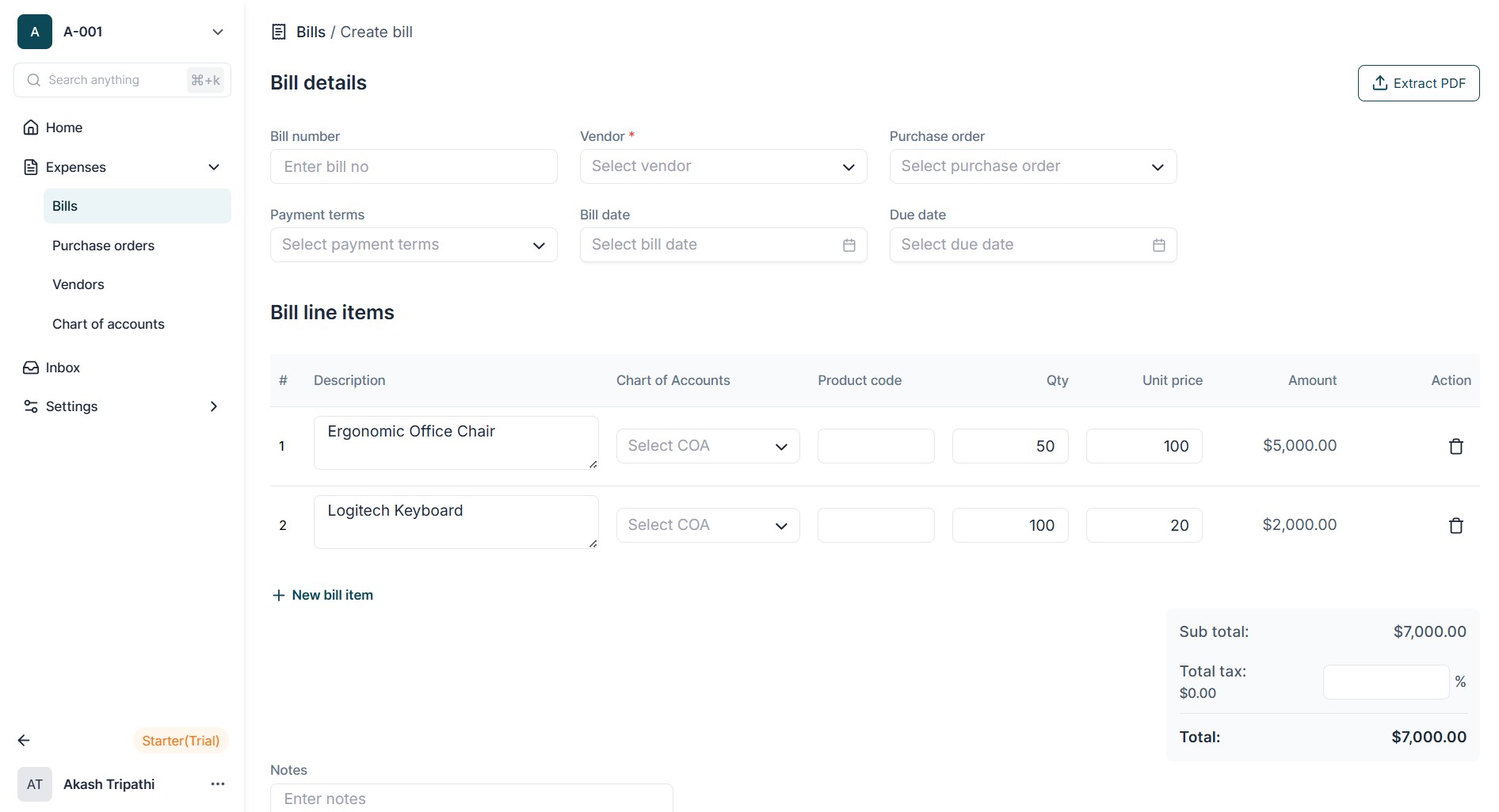
- Click “Extract PDF” : Upload the invoice PDF and let Rever extract key details (vendor, invoice number, date, amount).
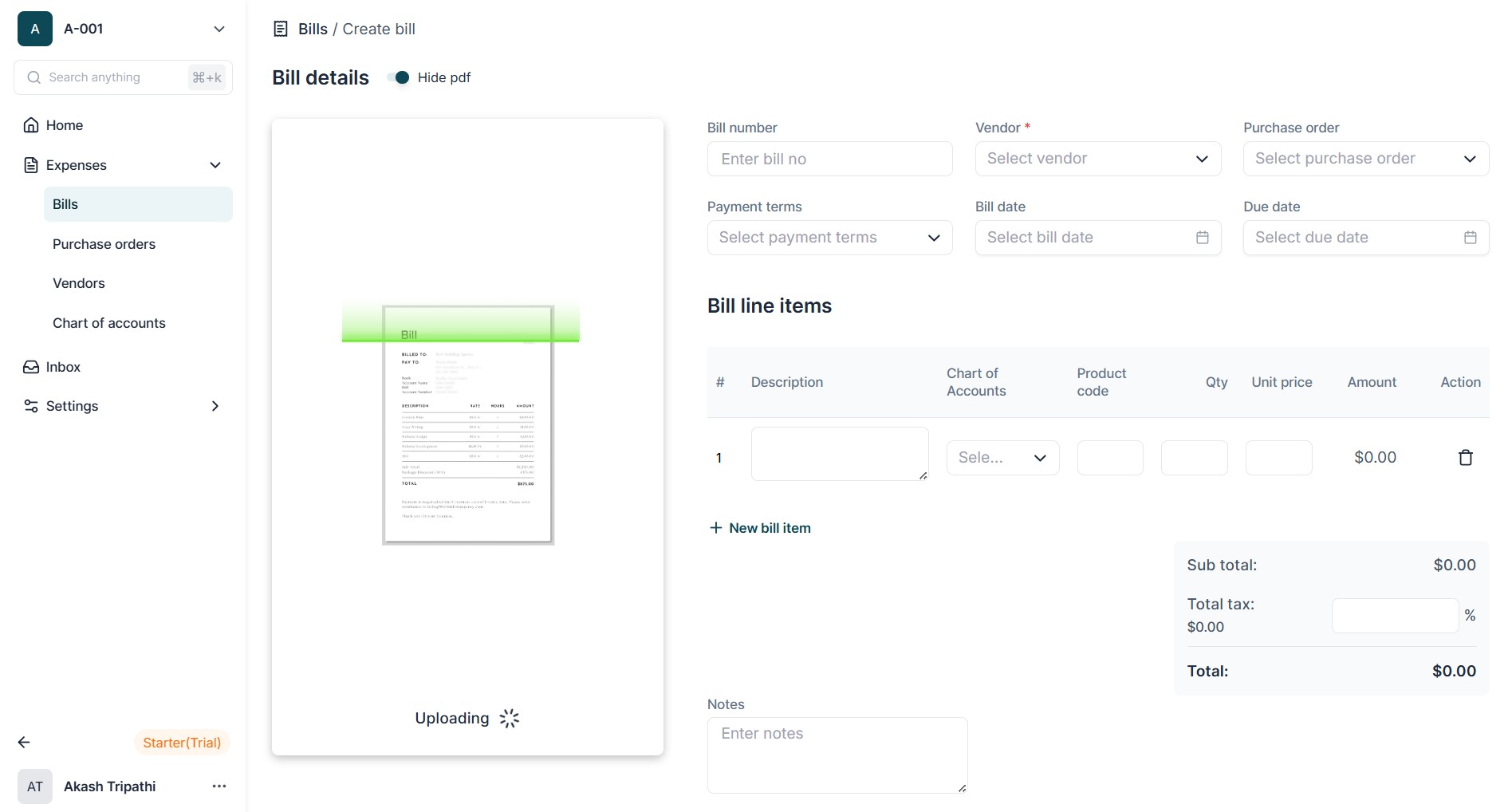
- Create Manually : Enter invoice details directly (Vendor, PO reference, Invoice Number, Date, Amount, Tax, Payment Terms).
- Review extracted or entered information.
- Click Save to create the bill.
Option 2: Upload Invoice PDF Directly
- Go to Bills → click Upload Bill.
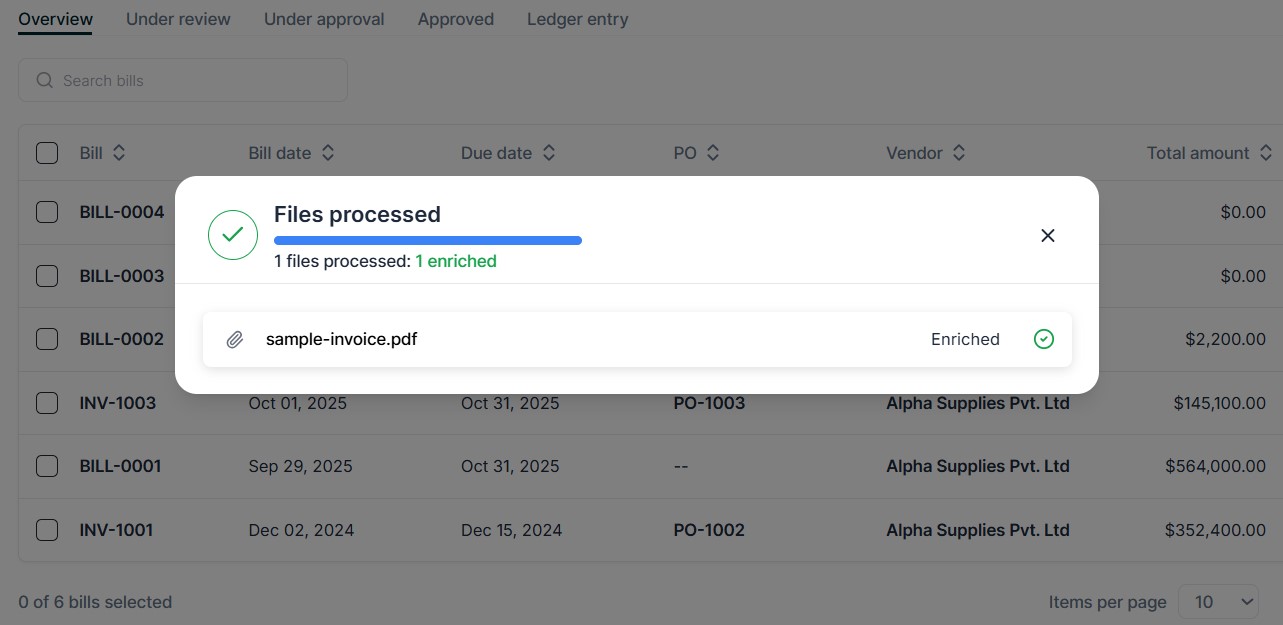
- Select one or more PDF files for upload.
- Review extracted fields.
- Click Save to create bills in bulk.
Option 3: Email Ingestion
- Each organization has a dedicated email ID.
- Members/Users can send invoices directly to this email.
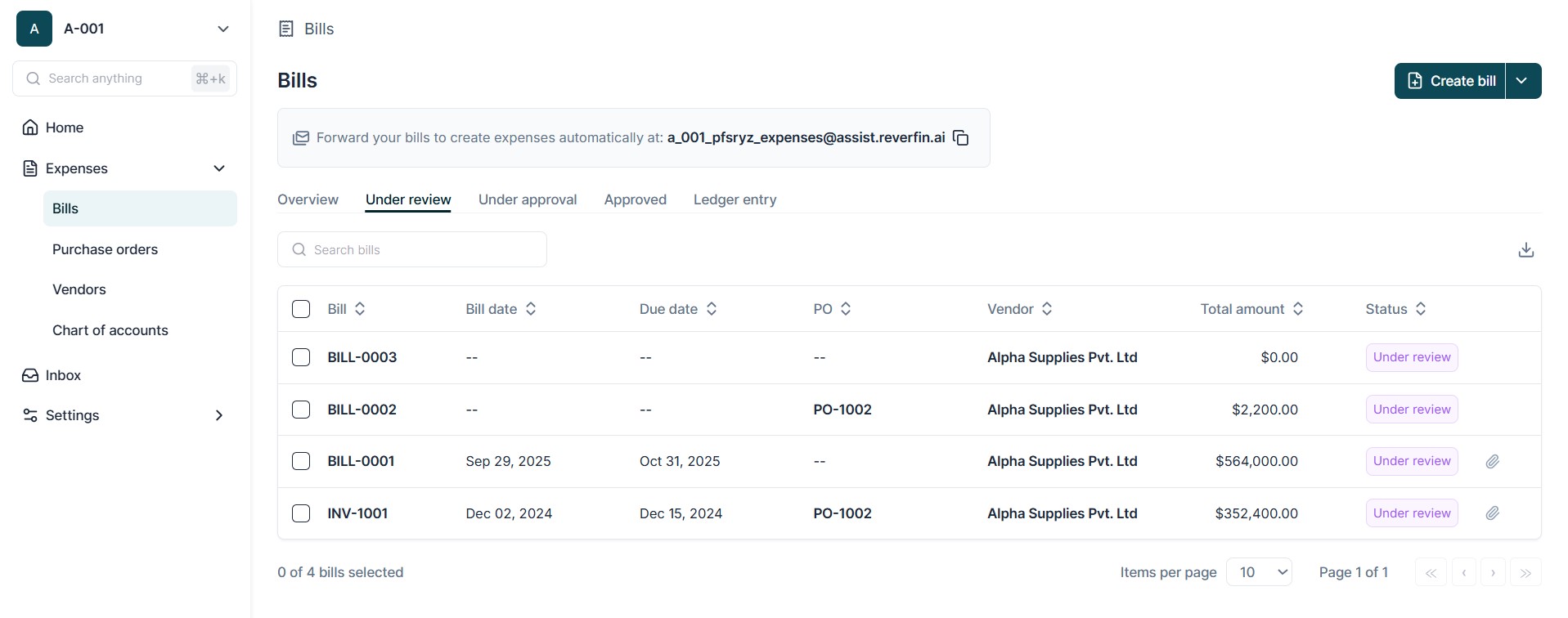
- Rever automatically ingests invoices from email attachments and creates draft bills.
- Go to Bills List to review, edit if necessary, and save the bills to move the bill from Draft to Under Review.
OCR Scanning and Vendor Handling
- OCR extracts invoice data automatically from PDF or email attachments.
- If the vendor exists in the system, the Vendor Name is automatically populated.
- If the vendor is not registered, the vendor must be manually created in the Rever and Post creation of Vendor, it should be edited in the PO or Bill.
Duplicate Detection
- When saving a bill, Rever checks for duplicates based on Vendor, Invoice Number
- Alerts are generated if a potential duplicate is detected.
